LED indicator
Updated onJuly 10, 2026
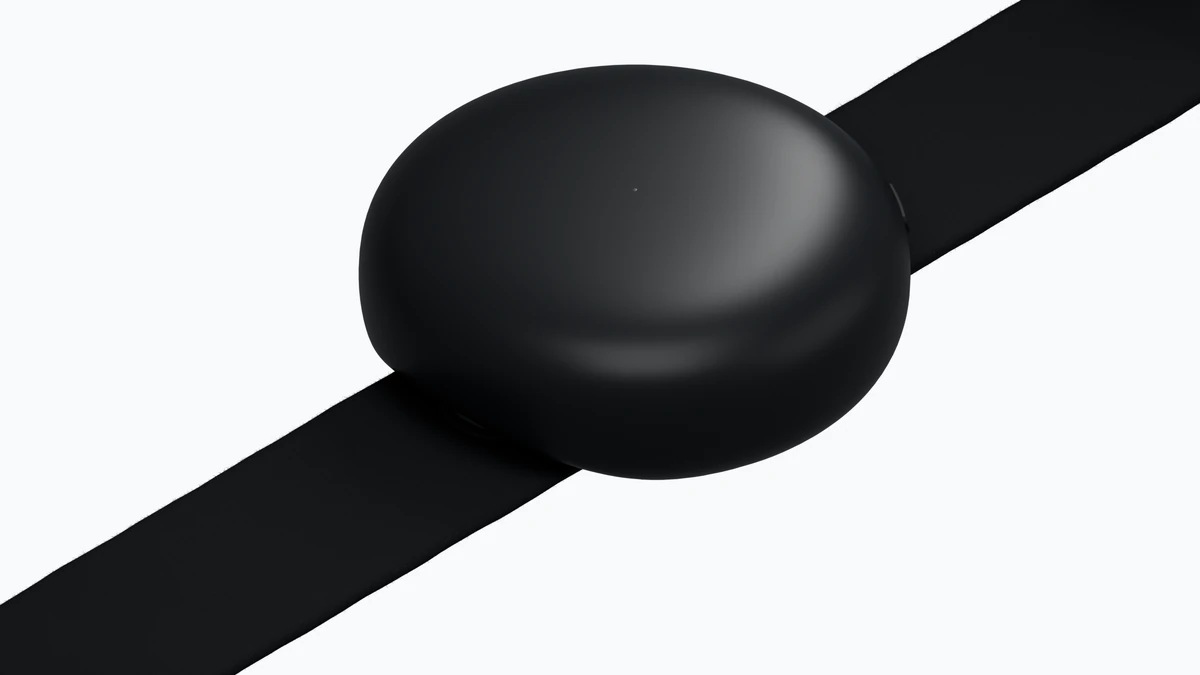
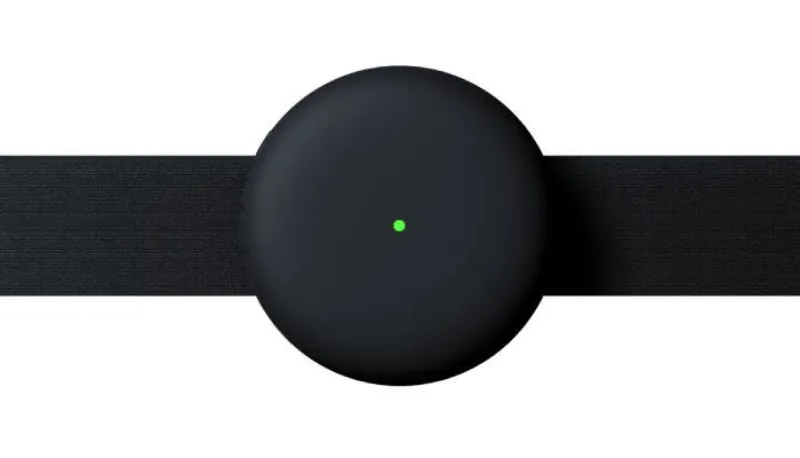
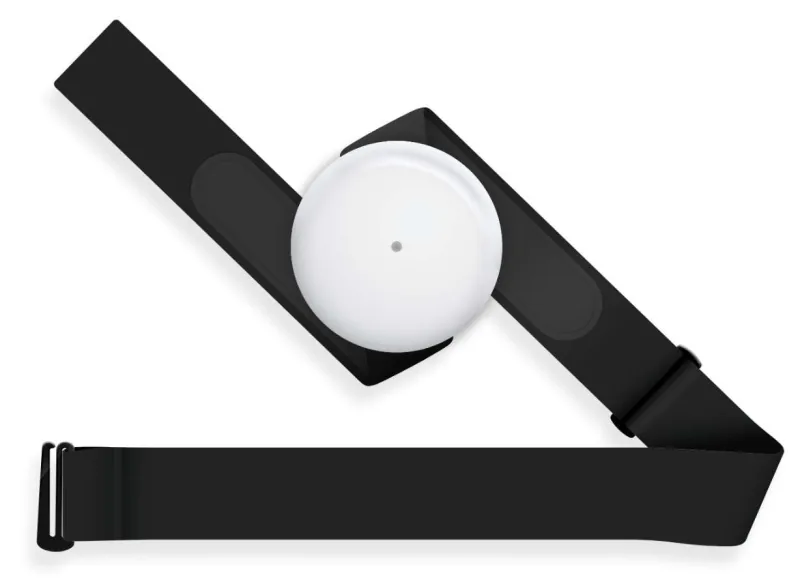
The power button of Aidlab 2 also serves as an LED indicator. The LED color shows the device state, while the pulse rate shows whether Bluetooth is connected.
| LED color | Aidlab 2 state |
|---|---|
| Green | Aidlab 2 detects contact with your body |
| White | Aidlab 2 does not detect body contact; stored data may synchronize when connected |
| Yellow | Low battery; this color takes priority over all other colors |
| Blue | Firmware update in progress |
| Cyan | Brief flash after you press the button twice quickly to mark an event |
| Red | Aidlab 2 could not start; it turns off |
The green or yellow LED color depends on the battery level:
- While charging: Green if the battery is at 80% or above, yellow below 80%.
- While in use: Green if the battery is above 20%, yellow at 20% or below.
When the battery is empty, the LED briefly flashes yellow and Aidlab 2 turns off.
| LED behavior | Meaning |
|---|---|
| Quick pulsating | No active Bluetooth connection; Aidlab 2 can still record to memory when worn and a recording is set up |
| Slow pulsating | Active Bluetooth connection |
| Constant green/yellow | Charging; Aidlab 2 does not connect or record while connected to power |
The pulse rate alone does not indicate whether Aidlab 2 is recording. Check the LED color or the live data in the app as well.
Changing LED brightness
You can change the LED brightness directly in the Aidlab app:
-
Open the Aidlab app on your phone.
-
Go to Devices.
-
Tap your paired Aidlab device.
-
Find the Indicator brightness slider.
-
Adjust the slider to your preferred brightness level.